JOpt.TourOptimizer on Windows
This page runs JOpt.TourOptimizer in trusted mode on Windows. The TourOptimizer image is a Linux image, so Windows runs it in Docker Desktop on the Windows Subsystem for Linux (WSL 2).
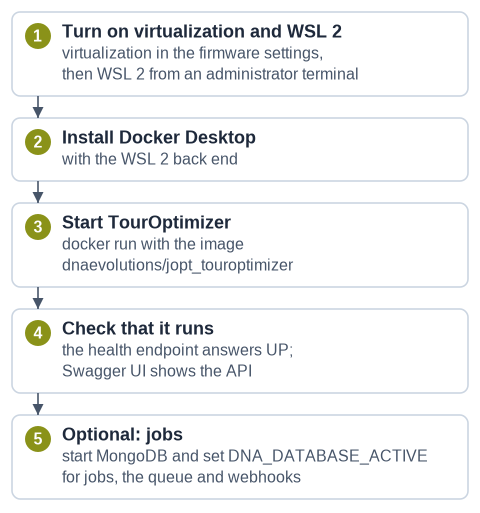
The diagram opens full size on click.
The diagram shows the steps of this page: the first two prepare Windows for Linux containers, the others are the same as on Linux.
Step 1: Turn on CPU virtualization
WSL 2 needs the virtualization of the CPU. The Performance tab of the Task Manager shows it under CPU as "Virtualization: Enabled". If it shows "Disabled", turn it on in the firmware settings (BIOS or UEFI):
- Restart the computer and press the key that opens the firmware settings during the start, often Delete, F2 or F12. The manual of the computer or the mainboard names the key.
- Find the setting, often under Advanced, CPU Configuration:
- on AMD processors it is named SVM or AMD-V;
- on Intel processors it is named Intel Virtualization Technology or VT-x.
- Turn it on, save and restart.
Step 2: Turn on WSL 2
Open PowerShell as administrator and run:
wsl.exe --install
The command turns on the Windows features that WSL 2 needs and installs the Linux kernel. Restart Windows when it asks for it. No particular Linux distribution is needed for Docker Desktop. On older Windows versions, or if the command fails, follow the WSL installation guide of Microsoft.
Step 3: Install Docker Desktop
Install Docker Desktop for Windows and choose the WSL 2 back end. After the start of Docker Desktop, docker version in PowerShell shows the client and the server.
Step 4: Start TourOptimizer
docker run -d --name jopt-touroptimizer `
  -p 127.0.0.1:8081:8081 `
  dnaevolutions/jopt_touroptimizer:2.1.0
TourOptimizer runs in trusted mode, as the user jopt and on port 8081. To pass the default license for jobs without their own license, put the line DNA_DEFAULT_LIC=<the JSON text of your JOpt license, on one line> into a file touroptimizer.env and add --env-file touroptimizer.env to the command. Linux explains each option; they are the same on Windows.
Step 5: Check that it runs
curl.exe http://localhost:8081/actuator/health
The answer holds "status":"UP", and the Swagger UI answers at http://localhost:8081/swagger-ui/index.html. Docker Desktop shows the container and its log.
Step 6 (optional): Add MongoDB for jobs
For jobs, the job queue, stored results and webhooks, start MongoDB next to TourOptimizer with the Docker Compose file of the Linux page. Docker Desktop includes Docker Compose, so docker compose up -d works in PowerShell in the same way.
Related pages
- Trusted mode: the three setups and what the mode needs
- Linux: each option of the container, and MongoDB with Docker Compose
- Settings: every setting with its default
- Getting started: a first run with a REST client
Added: 2026-11-27 | Last updated: 2026-11-27