JOpt.TourOptimizer on Linux
This page runs JOpt.TourOptimizer in trusted mode on a Linux machine with Docker Engine: first the container alone, then with MongoDB for jobs.
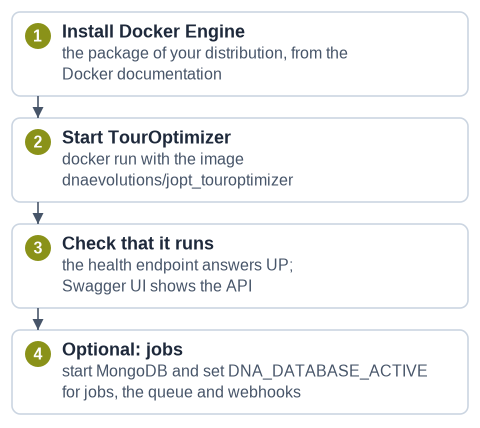
The diagram opens full size on click.
The diagram shows the four steps of this page: install Docker Engine, start TourOptimizer, check that it runs, and, as an option, add MongoDB for jobs.
Step 1: Install Docker Engine
Install Docker Engine from the package of your distribution, as the Docker Engine installation guide describes. The TourOptimizer image is built for linux/amd64, so the machine needs an x86-64 processor.
Step 2: Start TourOptimizer
docker run -d --name jopt-touroptimizer \
  -p 127.0.0.1:8081:8081 \
  dnaevolutions/jopt_touroptimizer:2.1.0
- The image runs TourOptimizer as the user
jopt, not as root, on Java 25, and listens on port8081. -p 127.0.0.1:8081:8081publishes the port on this machine only. Publish it on another address only in a network where no client other than your backend reaches it.- Without further settings TourOptimizer runs in trusted mode and answers synchronous runs and live streams.
- The Java heap takes up to 75 percent of the memory of the container. To cap it, give the container a memory limit, for example
--memory 4g.
To give jobs without their own license the default license of the server, put it into an environment file and pass the file to docker run:
# touroptimizer.env, readable only by the user who starts the container
DNA_DEFAULT_LIC=<the JSON text of your JOpt license, on one line>
docker run -d --name jopt-touroptimizer \
  -p 127.0.0.1:8081:8081 \
  --env-file touroptimizer.env \
  dnaevolutions/jopt_touroptimizer:2.1.0
Every setting of TourOptimizer can go into this file in the same form; Settings lists them.
Step 3: Check that it runs
curl http://localhost:8081/actuator/health
The answer holds "status":"UP". The health check of the image reads the same endpoint, so docker ps shows the container as healthy after its start period. The Swagger UI answers at http://localhost:8081/swagger-ui/index.html and lists the API. On a server that callers outside your network can reach, switch the Swagger UI and the OpenAPI schema off (Settings: API documentation).
docker logs jopt-touroptimizer shows the log. DNA_LOG_FORMAT=ecs writes one JSON object per line, for a log collector.
Step 4 (optional): Add MongoDB for jobs
Jobs, the job queue, stored results and completion webhooks need MongoDB. This Docker Compose file starts MongoDB and TourOptimizer together:
# compose.yaml
services:
  mongo:
    image: mongo:7
    environment:
      MONGO_INITDB_ROOT_USERNAME: ${MONGO_USER}
      MONGO_INITDB_ROOT_PASSWORD: ${MONGO_PASSWORD}
    volumes:
      - mongo-data:/data/db
    healthcheck:
      test: ["CMD", "mongosh", "--quiet", "--eval", "db.adminCommand('ping').ok"]
      interval: 10s
      timeout: 5s
      retries: 12

  touroptimizer:
    image: dnaevolutions/jopt_touroptimizer:2.1.0
    depends_on:
      mongo:
        condition: service_healthy
    ports:
      - "127.0.0.1:8081:8081"
    env_file: touroptimizer.env
    environment:
      DNA_DATABASE_ACTIVE: "true"
      DNA_DATABASE_URI: mongodb://${MONGO_USER}:${MONGO_PASSWORD}@mongo:27017/?authSource=admin
    restart: unless-stopped

volumes:
  mongo-data:
Put MONGO_USER and MONGO_PASSWORD into a file named .env next to compose.yaml; Docker Compose reads it and fills in the two values. Then start both:
docker compose up -d
docker compose ps
MongoDB is reached only inside the network of the Compose project, and its port is not published. TourOptimizer creates the database touroptimizer on the first job (DNA_DATABASE_DB). How jobs work is on Jobs.
Updates
Change the image tag in the command or in compose.yaml to the new version and start the container again. The image tags are listed on Docker Hub. A job whose copy is lost while it runs goes back to the queue once and starts over (Jobs).
Related pages
- Trusted mode: the three setups and what the mode needs
- Settings: every setting with its default
- Jobs: submit, queue, run, read and keep a job
- Kubernetes: the same container on Kubernetes
Added: 2026-11-27 | Last updated: 2026-11-27